Tivilo TV for LG TV
For LG Smart TVs with webOS 5 or newer (roughly 2020 and newer). LG does not allow apps from outside its store, so you install Tivilo TV through LG's official Developer Mode, using the free tool Dev Manager on your computer.
Note: Developer Mode must be extended. Developer Mode lasts about 999 hours (around 41 days). Open the Developer Mode app on your TV at any time and press Extend. The timer resets to 999 hours. If you forget, the TV removes Tivilo TV, including your sources and settings, and you have to install it again. Tivilo TV warns you 7 days in advance.
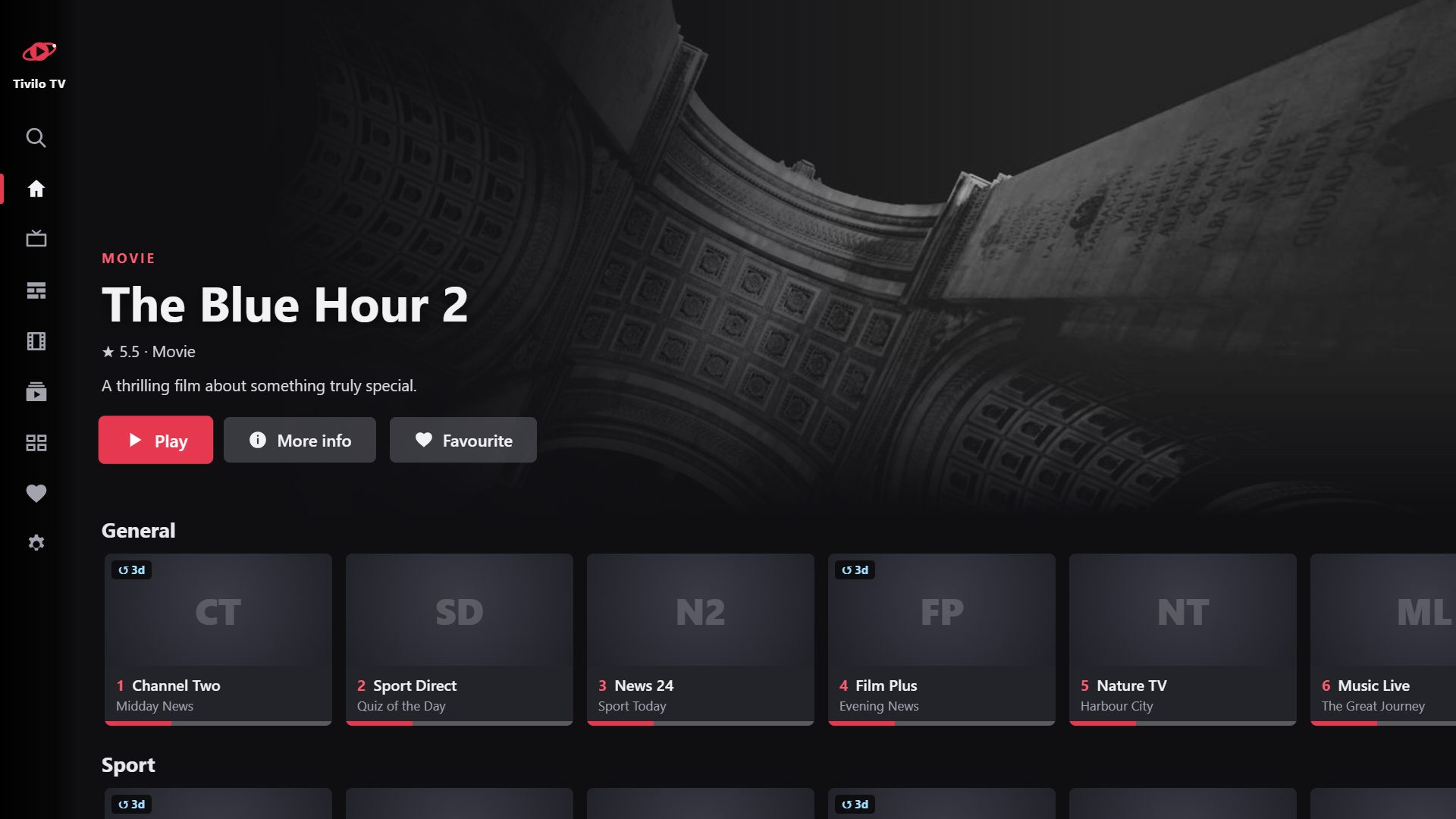
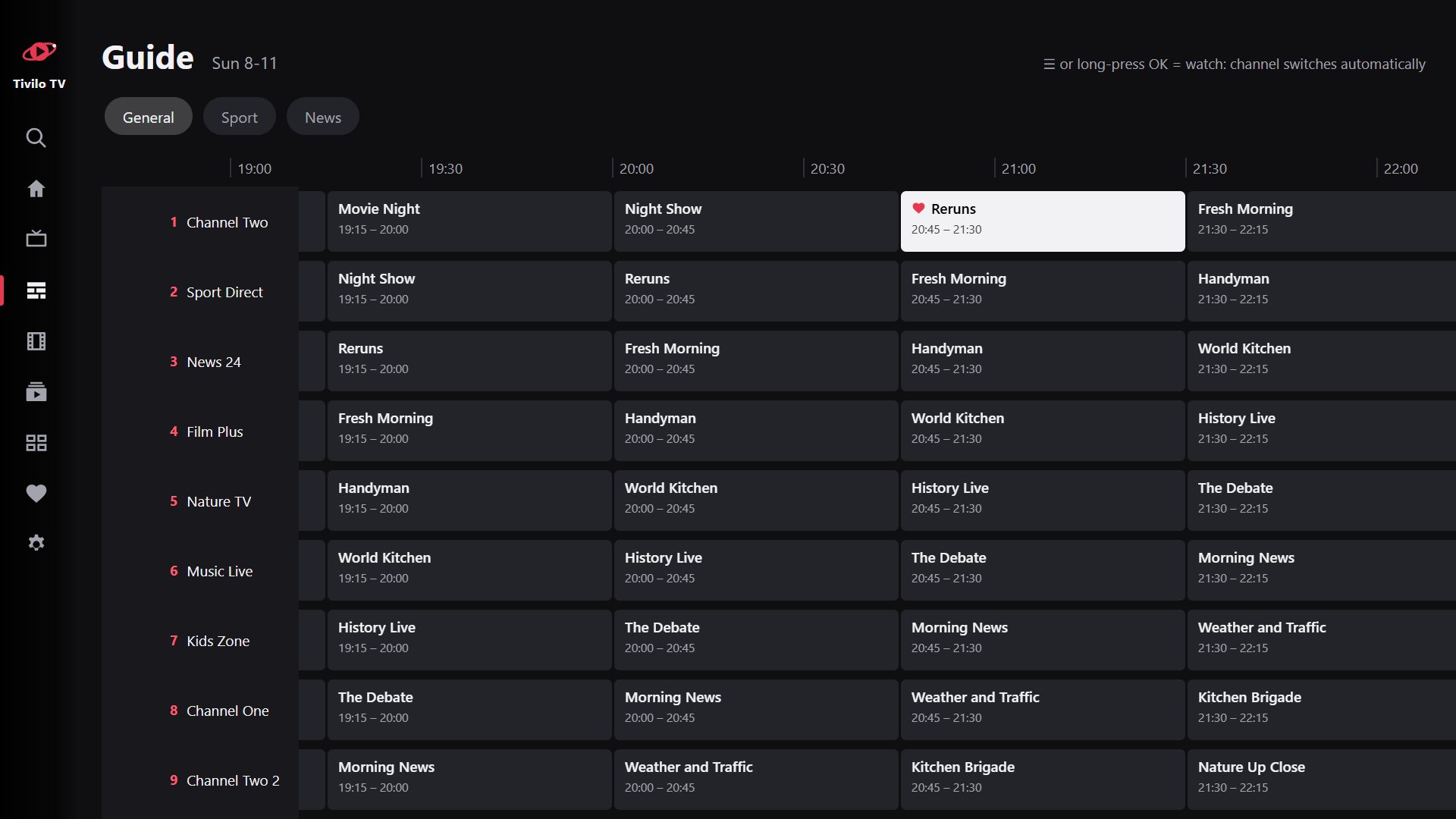
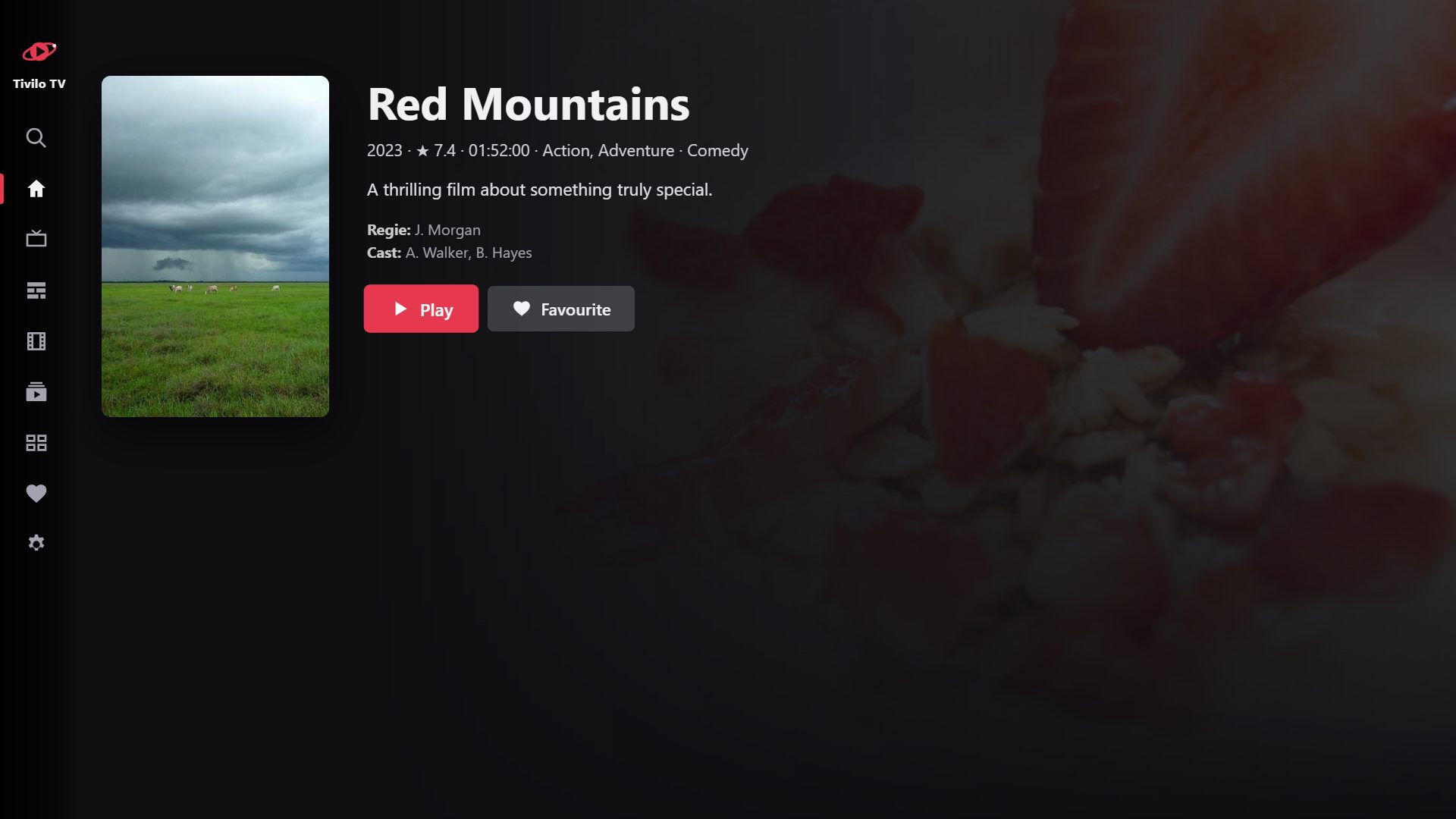
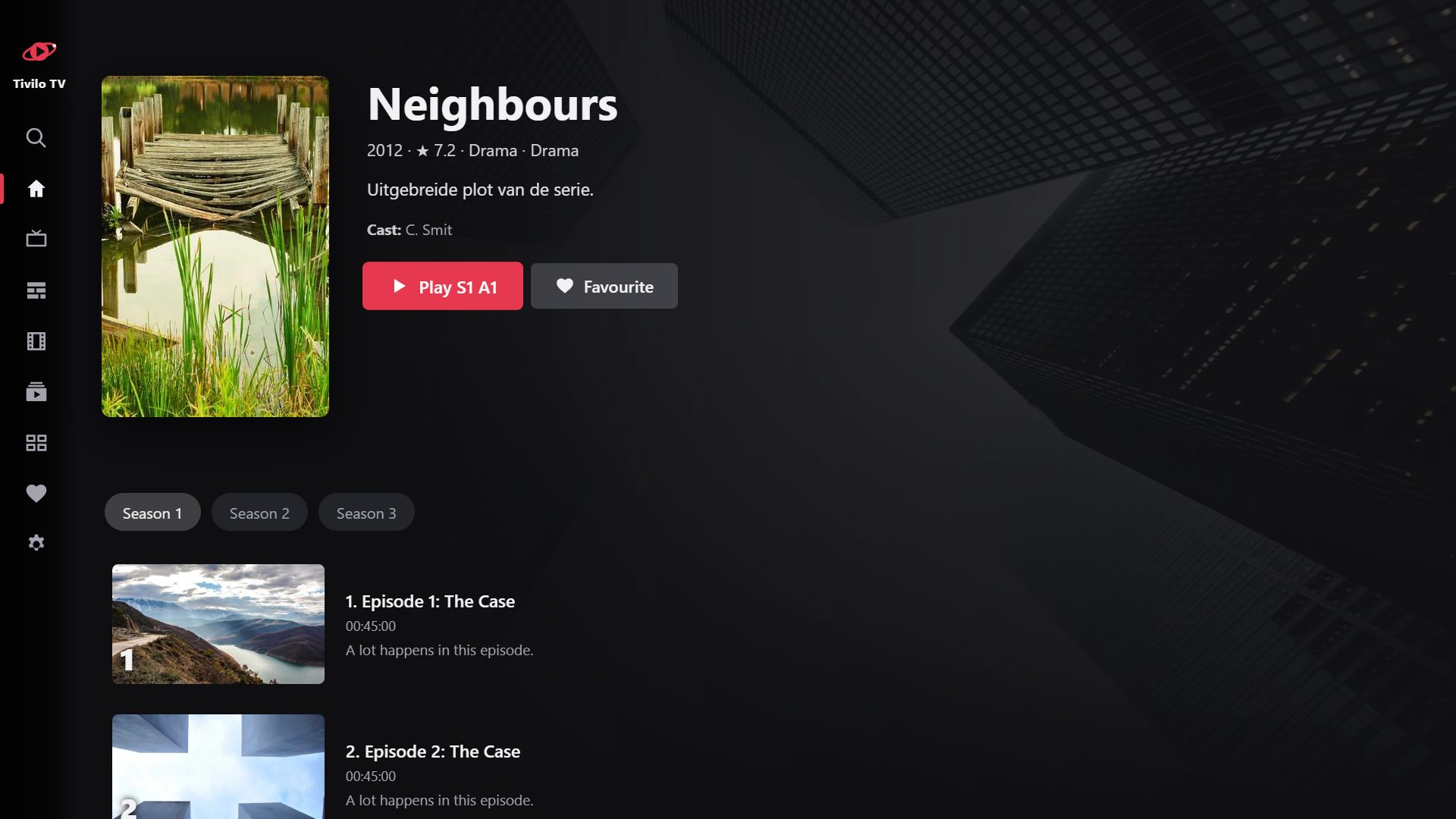
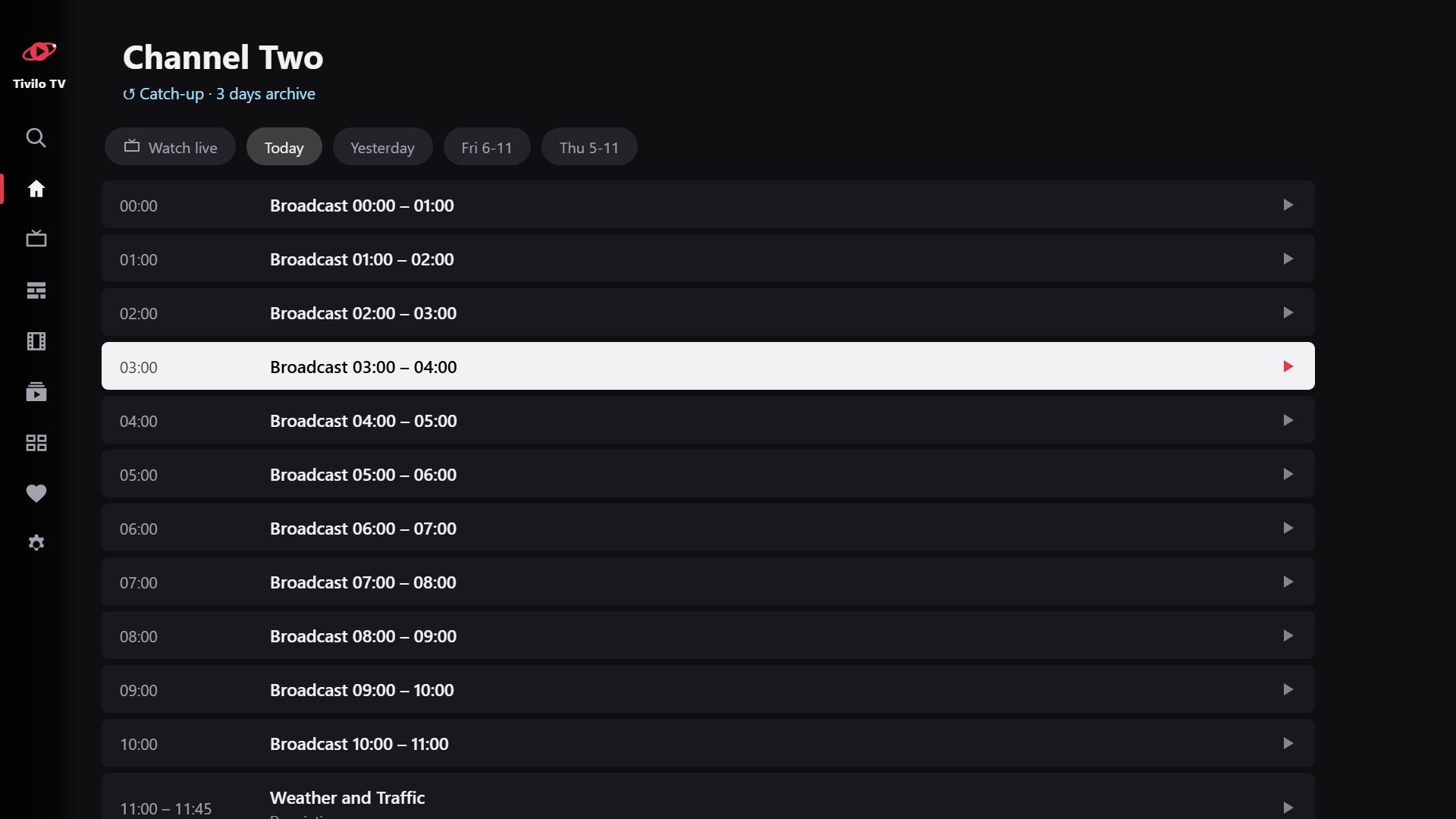
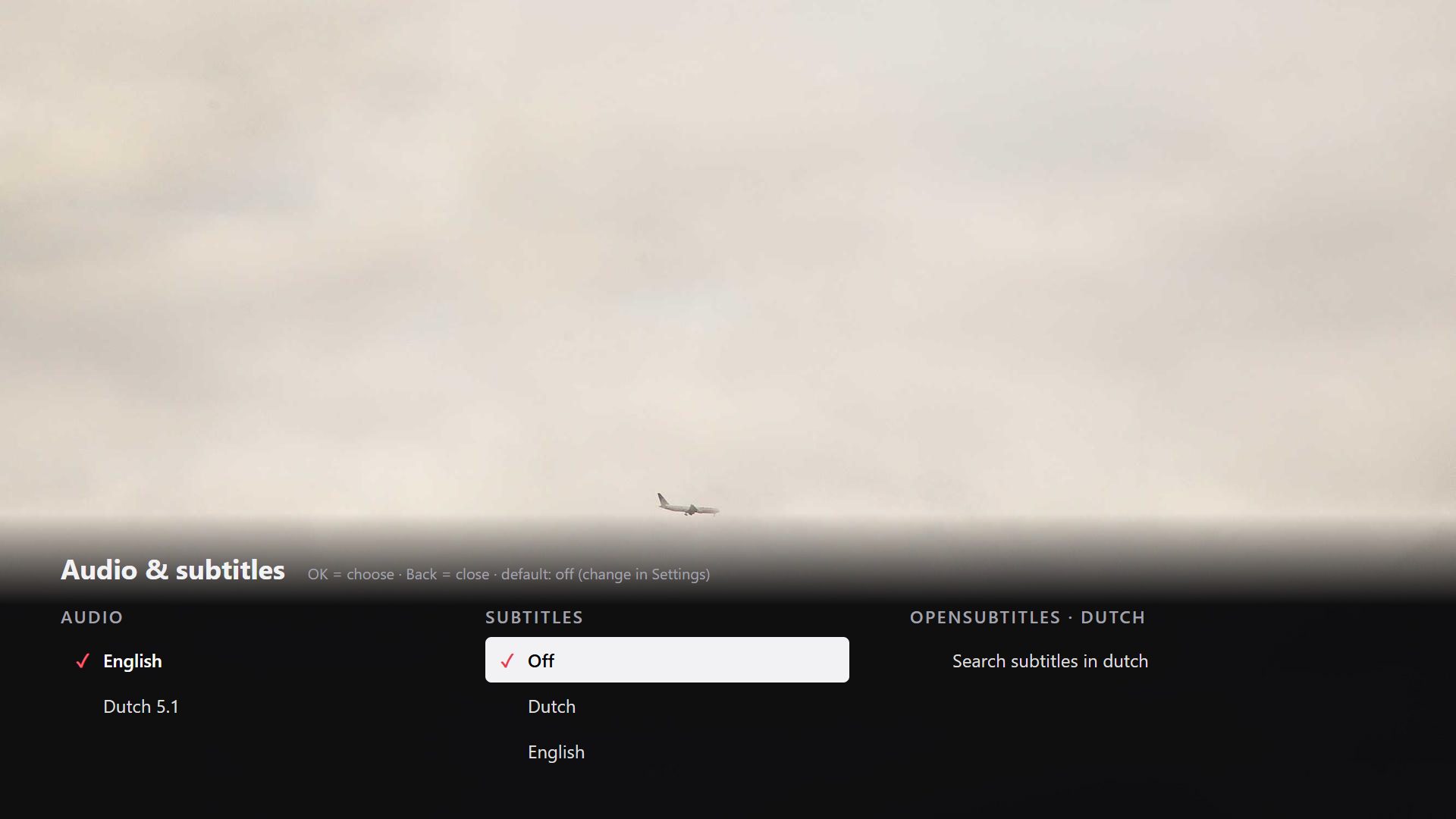
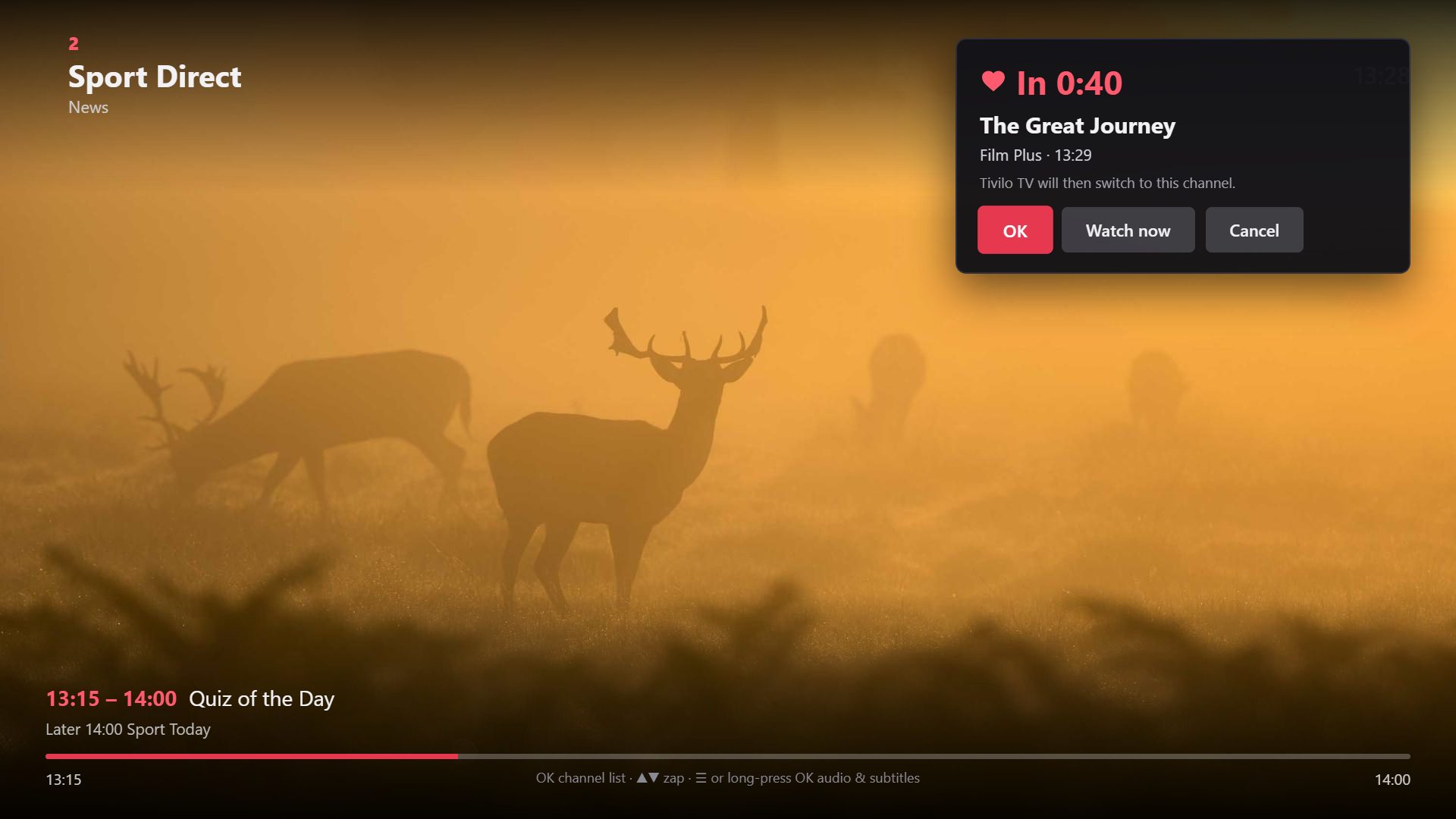
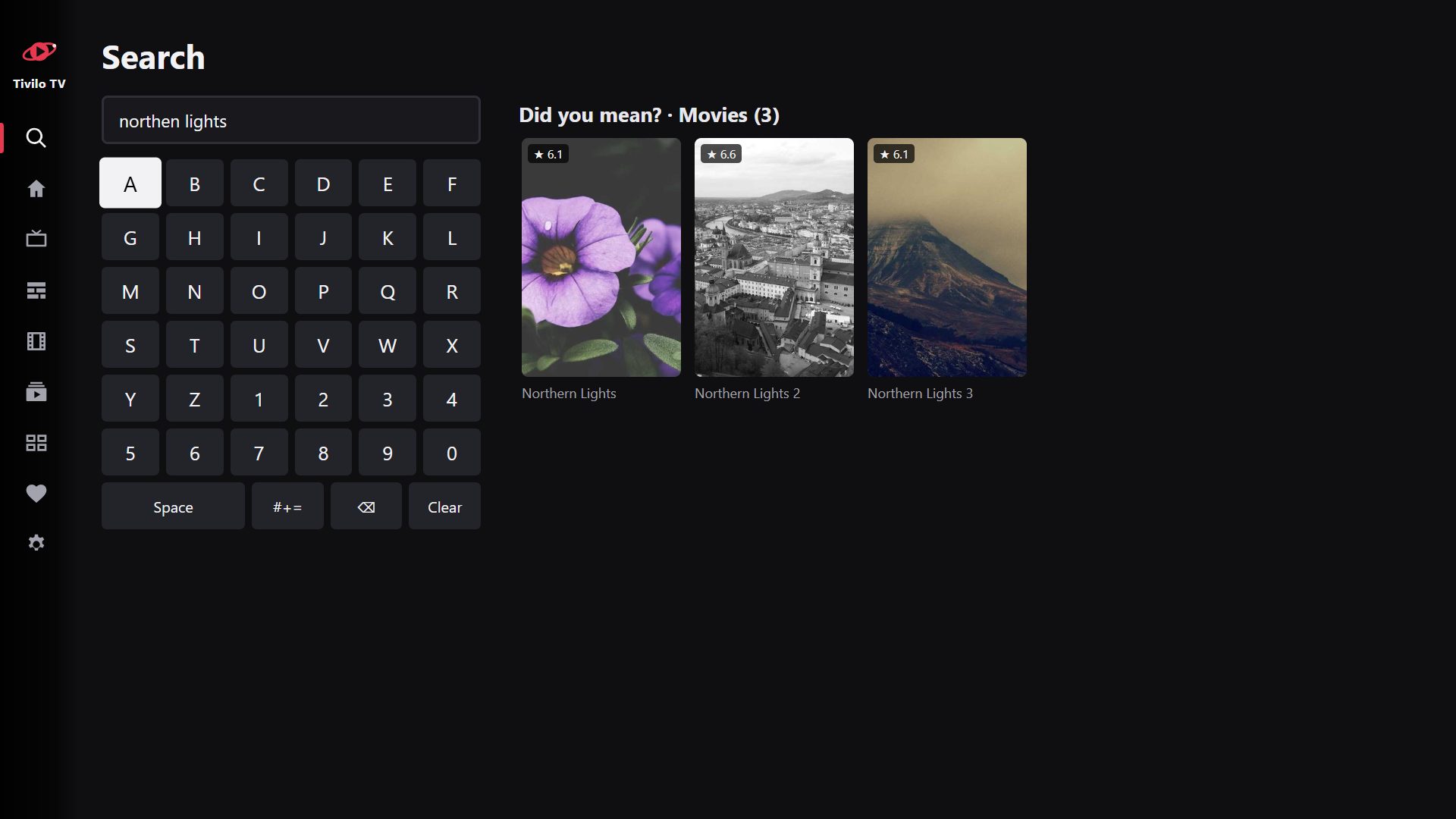
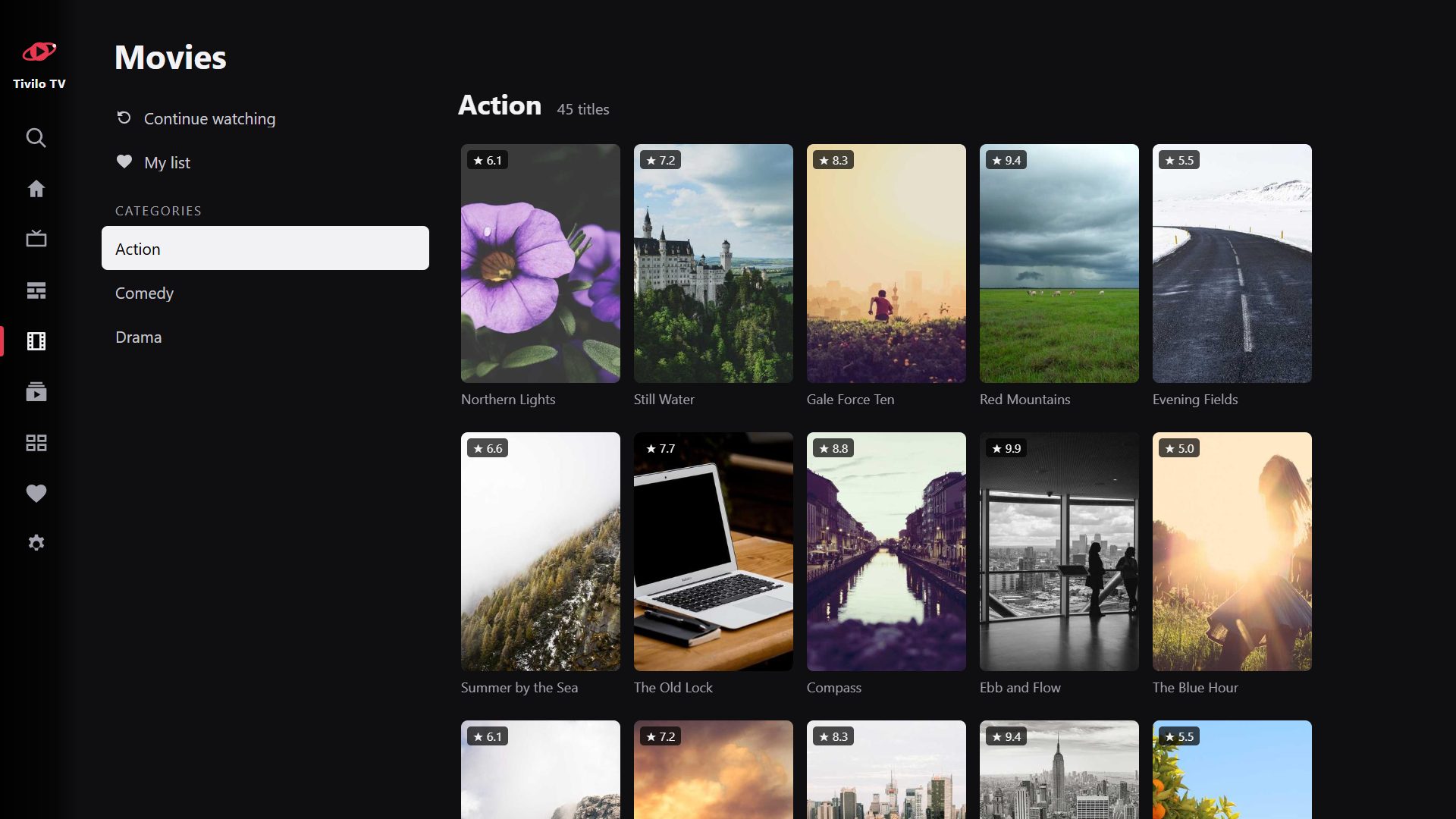
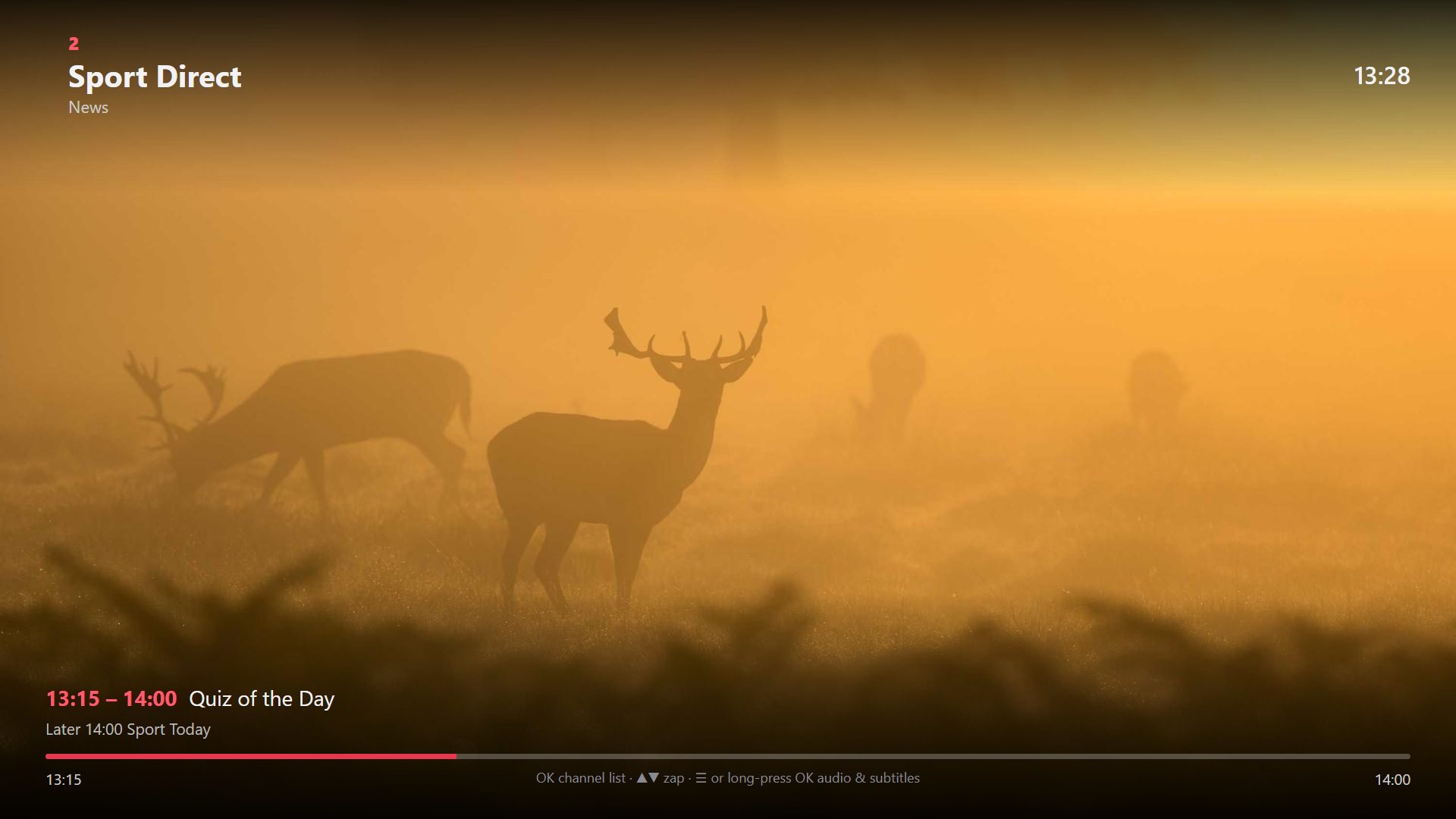
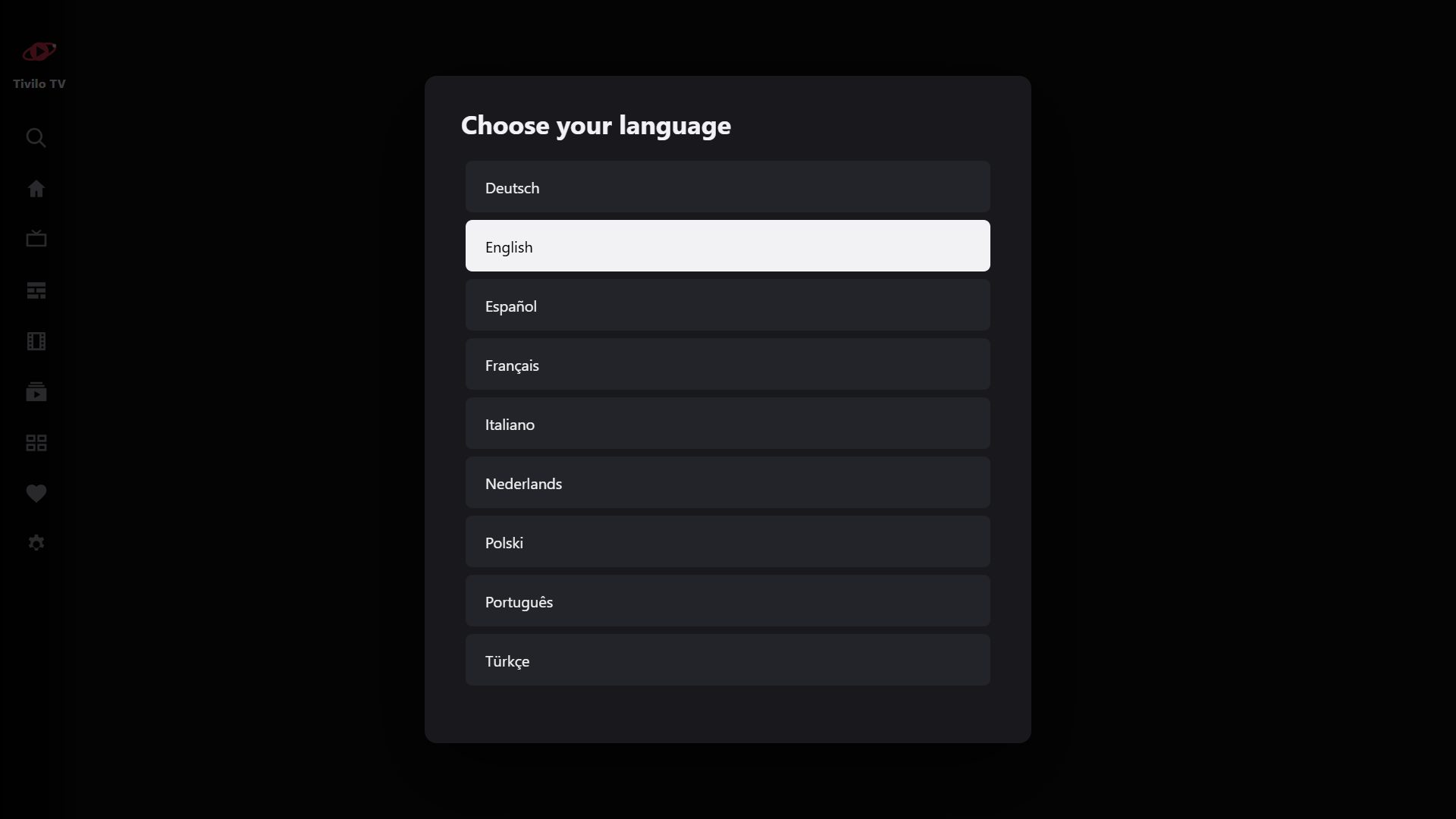
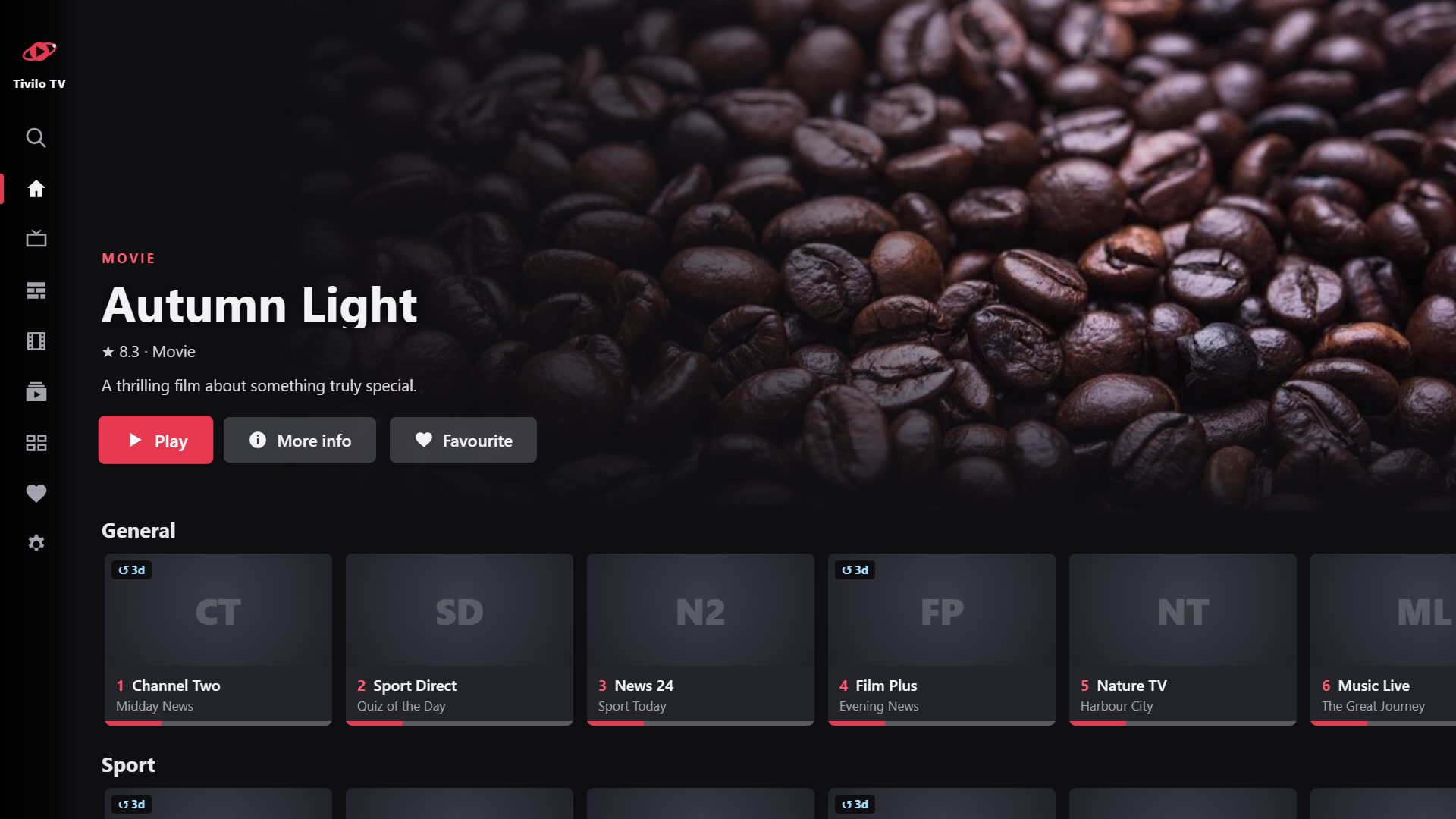
What it looks like
What you need
- An LG TV with webOS 5 or newer, connected to the internet.
- A Windows PC, Mac or Linux computer on the same network as the TV.
- A free LG Developer account.
- The Tivilo TV file from this page.
Step 1: create a free LG Developer account
- On your computer, go to webostv.developer.lge.com.
- Choose Sign In and then Create Account (or sign in with an existing LG account).
- Confirm your email address and remember your login details.
Step 2: turn on Developer Mode on the TV
- On the TV, open the LG Content Store (LG Apps), search for the Developer Mode app and install it.
- Open Developer Mode and sign in with your LG Developer account.
- Set Dev Mode Status to ON. The TV restarts.
- Open Developer Mode again and set Key Server to ON.
- Write down the TV's IP address and the Passphrase (6 characters, case-sensitive).
If connecting fails later, turn off Quick Start+ in the TV settings and restart the TV.
Step 3: install Dev Manager on your computer
- Download Dev Manager from github.com/webosbrew/dev-manager-desktop/releases: Windows
.msi, Mac.dmg, Linux.debor.AppImage. - Install and start Dev Manager.
Step 4: add the TV and install Tivilo TV
- In Dev Manager choose Add device and enter a name, the TV's IP address and the passphrase. Keep the Developer Mode app open on the TV.
- Go to Apps, choose Install and select the downloaded Tivilo TV file.
- Done: Tivilo TV is in your apps on the TV. Open it, choose your language and add your own playlist.
Install a newer version the same way. Your channels and settings are kept. After a restart the TV's IP address may have changed: update it in Dev Manager.
Step 5: extend Developer Mode in time
- Open the Developer Mode app on your TV at any time and press Extend. The timer resets to 999 hours. Remain Session shows how much time is left.
- Then press I have just extended in Tivilo TV (Settings › LG Developer Mode). There you also see a counter with roughly how many days Developer Mode is still valid.
- If the timer has already run out, you cannot extend it anymore: turn Developer Mode on again and reinstall Tivilo TV.
- Tip: set a reminder in your calendar every 4 weeks. Extending only takes a few seconds.
First use
- Choose Xtream Codes account and enter the server, username and password from your provider. Or choose M3U URL and paste your playlist link.
- Optional: enter an EPG URL (XMLTV) for the TV guide.
- Done. You can now try Tivilo TV with all features for 7 days.
Controls
- Arrows and OK to navigate, Back to go back.
- Magic Remote: point and click. In the player, click the picture for the buttons (pause, seek, channel list, audio and subtitles, picture size, close).
- RED = favourite (in the guide: watch a show).
- Live TV: up/down or CH+/CH- to zap, OK for the channel list.
- Multiview: up to 2 screens at once, depending on your TV.
- Recording and downloading are not available on LG TVs: webOS does not allow apps to save video.
Watch shows from the guide
- Pick a show in the guide: press RED on a show. A heart appears. If it airs more often, you can mark future episodes too.
- You get a reminder 10 and 5 minutes before, and a countdown 1 minute before. At the start time Tivilo TV switches to the channel. You can cancel in the reminder.
- Tivilo TV needs to be open for this.
Free trial and licence
Lifetime licence
€ 17.99
Pay once, valid forever. Per device.
- For the first 7 days you can use everything. The app shows how many days are left.
- After that the app shows a code. Use that code to buy a licence on the payment page.
- After payment you get a key straight away. If the app is open on the licence screen, it activates itself; otherwise enter the key.
- The licence belongs to this one device and stays valid if you reinstall the app. After a factory reset a new key is needed.
You can also find the code and enter the key earlier in the app, under Settings › Licence.