Tivilo TV for Windows
For Windows 11 and Windows 10 (64-bit). Control everything with mouse or keyboard.
What it looks like

Installation
- Download the file and open it.
- Does Windows show Windows protected your PC? Click More info and then Run anyway. This appears because the app is not registered with Microsoft.
- Follow the steps. No administrator rights needed; Tivilo TV appears in the Start menu and, if you like, on the desktop.
Install a newer version over the old one. Your channels and settings are kept.
First use
- Choose Xtream Codes account and enter the server, username and password from your provider. Or choose M3U URL and paste your playlist link.
- Optional: enter an EPG URL (XMLTV) for the TV guide.
- Done. You can now try Tivilo TV with all features for 7 days.
Controls
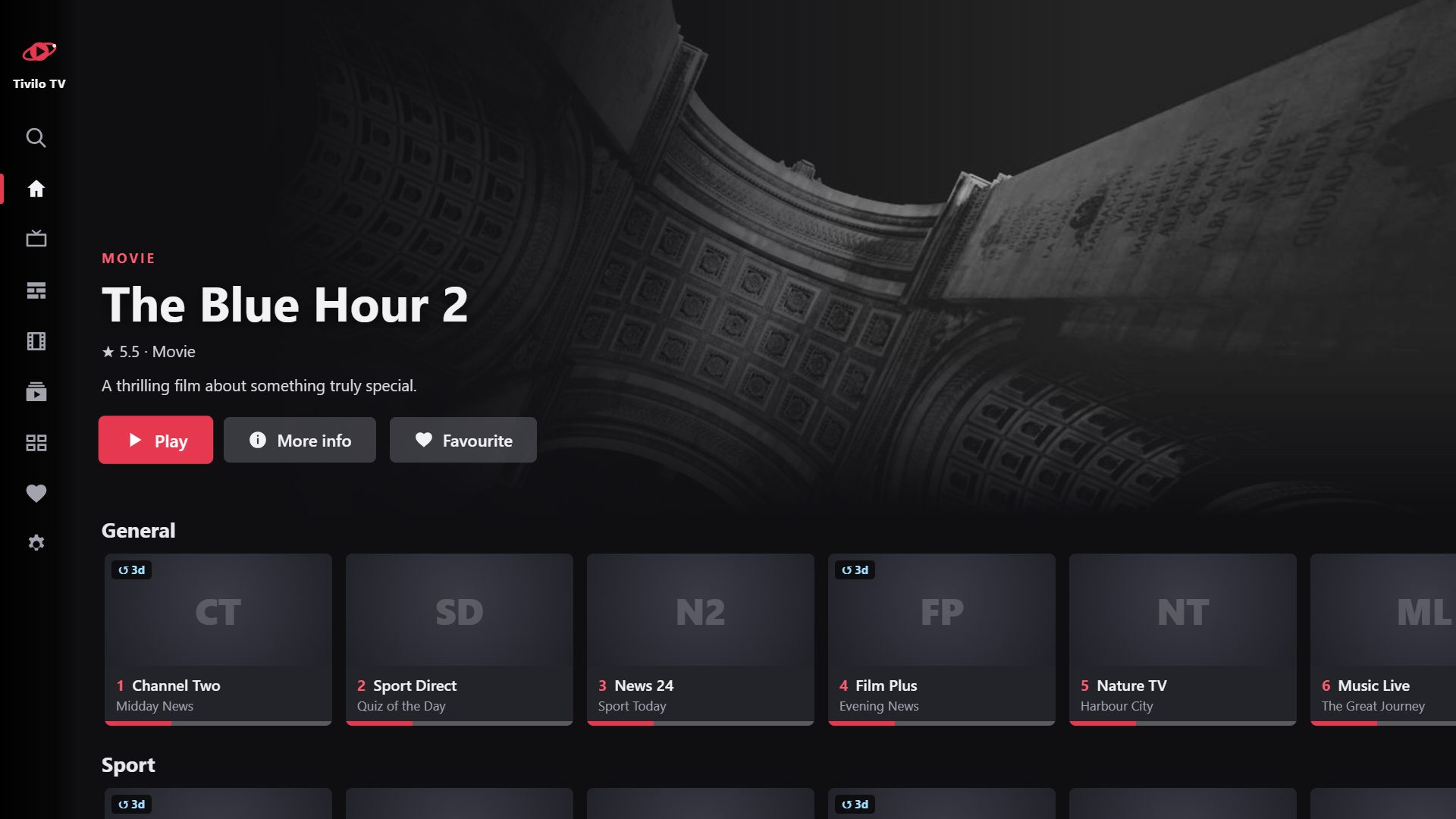
- Click to open. Scroll rows with the arrows that appear on hover, by dragging, or with Shift + scroll wheel.
- Right-click a title for the options: favourite, remove from Continue watching, catch-up.
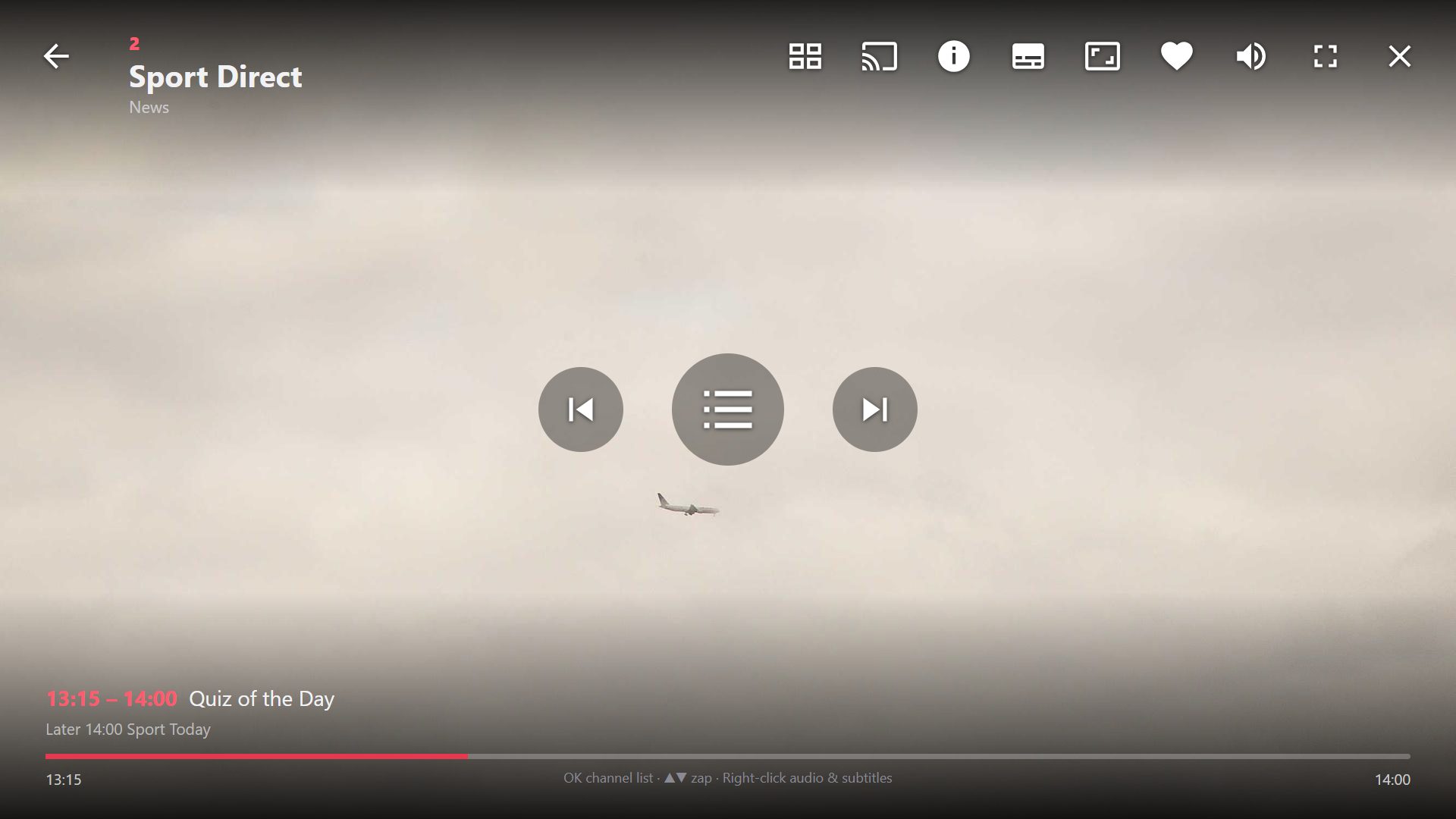
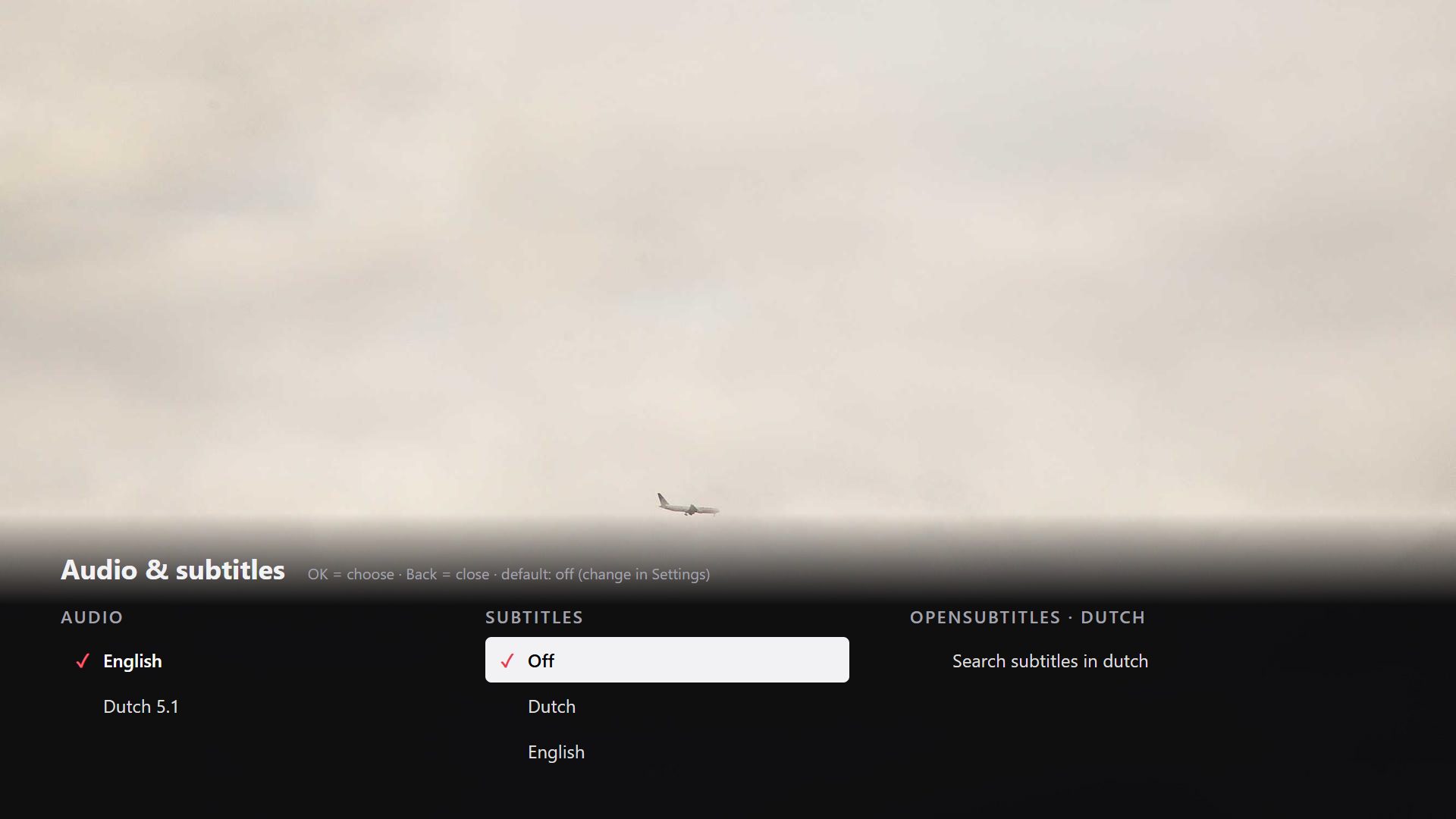
- In the player: move the mouse or click for the buttons. Top right: close, subtitles, picture size and full screen; in the middle: pause and skip 10 seconds, or previous/next channel and the channel list on live TV. Click the progress bar to seek.
- Casting to Chromecast: click the cast icon in the player and choose your Chromecast (PC and Chromecast on the same network). If Windows asks for firewall access for Tivilo TV, choose Allow. A regular Chromecast only plays HD (H.264) with AAC or MP3 audio.
- Keyboard: arrows, Enter and Esc. Space is pause, F or double-click is full screen, M is mute. The scroll wheel zaps in the player.
Watch shows from the guide
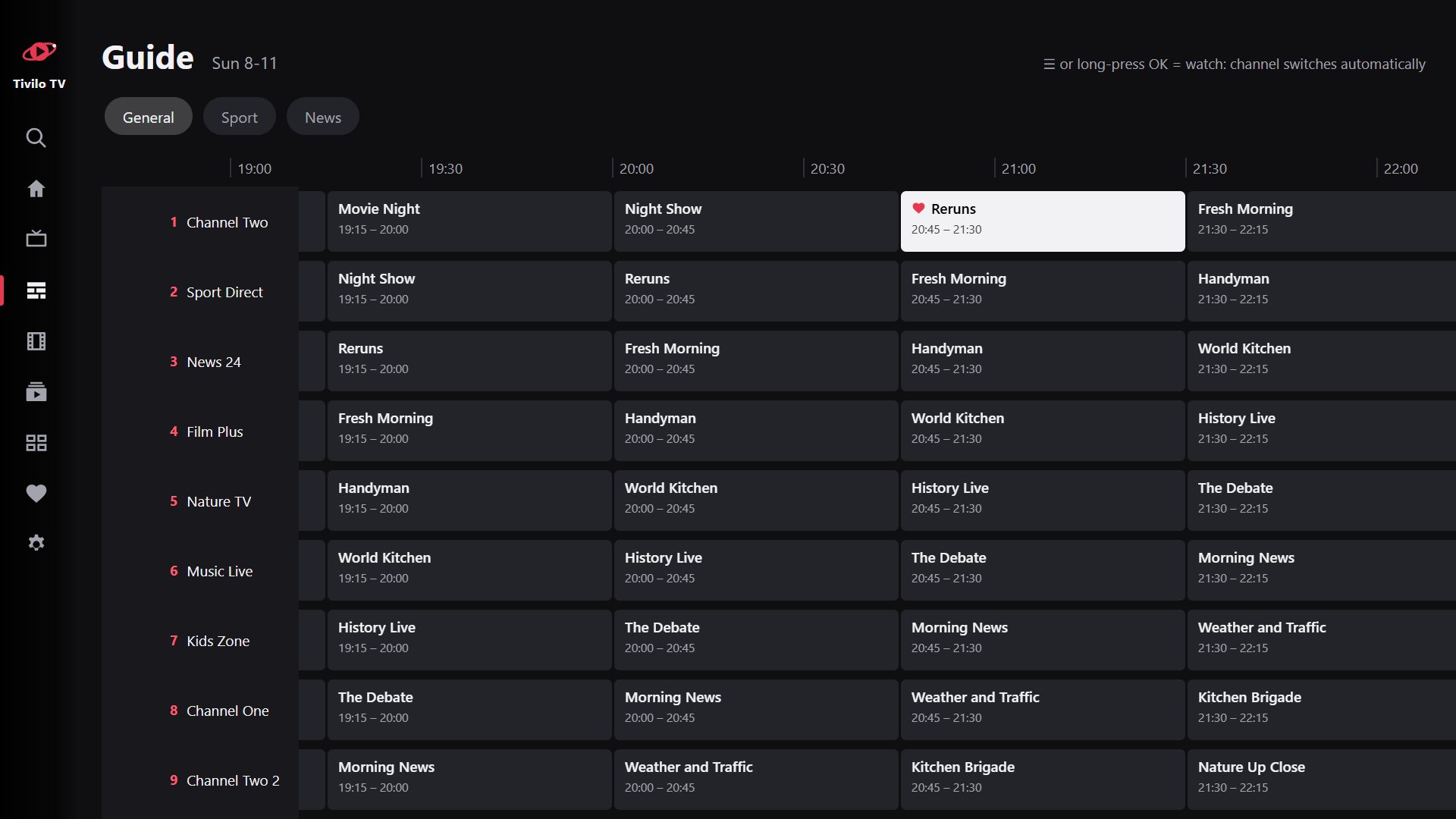
- Pick a show in the guide: right-click it. A heart appears. If it airs more often, you can mark future episodes too.
- You get a reminder 10 and 5 minutes before, and a countdown 1 minute before. At the start time Tivilo TV switches to the channel. You can cancel in the reminder.
- Tivilo TV needs to be open for this.
Free trial and licence
Lifetime licence
€ 17.99
Pay once, valid forever. Per device.
- For the first 7 days you can use everything. The app shows how many days are left.
- After that the app shows a code. Use that code to buy a licence on the payment page.
- After payment you get a key straight away. If the app is open on the licence screen, it activates itself; otherwise enter the key.
- The licence belongs to this one device and stays valid if you reinstall the app. After reinstalling Windows itself a new key is needed.
You can also find the code and enter the key earlier in the app, under Settings › Licence.